If a tool is not giving the result you expect, start with a short example and check one setting at a time. Keep your current message on screen while you read the error. Use Clear when you want to start over; it removes the current input and result.
Clear the current session
Clear removes the message, typed key, result, warnings, and selected step, and stops Morse audio. Number settings return to their defaults, while Encode or Decode stays as selected. Load example brings back a sample when you are ready. Clearing the tool does not delete downloaded files or text you have copied elsewhere.
Your theme choice is saved when browser storage is available. Messages and keys are not saved as a history. If storage is blocked, you can still switch themes for the visit; the page tells you that the choice will not be remembered.
Resolve a specific input error
| What you see | What to inspect | A useful next step |
|---|---|---|
| A key is required | The method’s Key field | Enter the documented letter or digit key |
| A character needs normalization | The original character and its position | Enable the relevant explicit option or edit the input |
| An encoded token is invalid | The reported token and its separators | Compare it with the method’s chart; do not silently delete it |
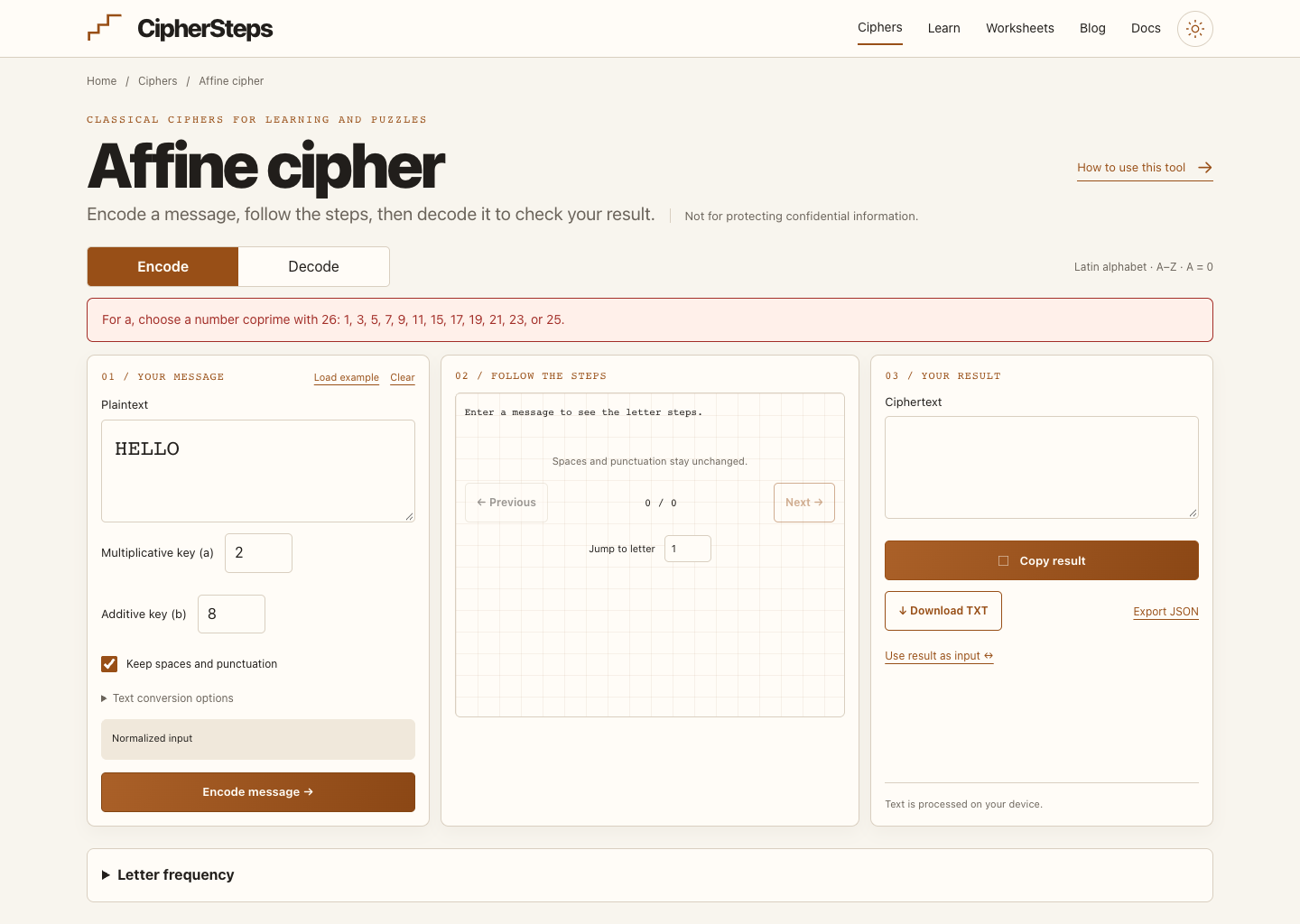
| An Affine key is not coprime | The multiplicative key a | Choose a valid value such as 5 |
| An input or key is too long | The stated size limit | Use a shorter message or key |
A quick workspace check
HELLO, WORLD!Caesar; shift 3; preserve nonlettersKHOOR, ZRUOG!If the Caesar example works, compare its settings with the message you are trying to convert. An X or Q in decoded Playfair text may be a filler, rather than a mistake. A grid that combines I/J or C/K also cannot tell you which original letter was used.
If Morse playback will not start
- Enter SOS in the Morse translator and encode it as ... --- ... .
- Choose a speed such as 20 WPM and a tone such as 600 Hz.
- Set the volume above zero at a comfortable level.
- Press Play. Browsers need this action before starting sound.
- Press Stop when you want to end playback or move to another task.
Check the device volume, selected audio output, and whether the browser tab is muted, then press Play again. The written Morse code stays available if you cannot use sound. No microphone access is needed. Clearing, leaving, or hiding the page stops playback.
Copy without losing the result
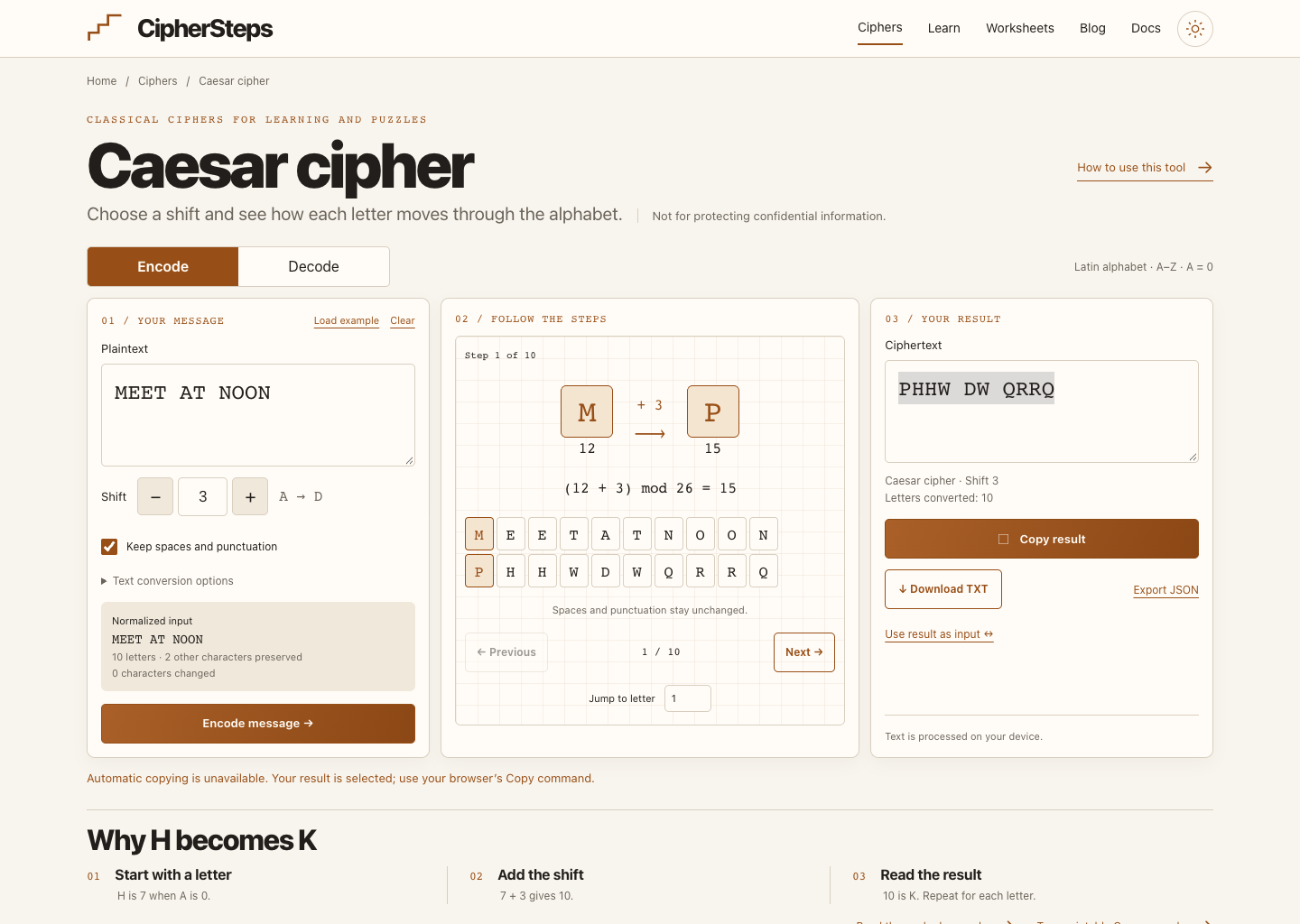
If the browser does not allow automatic copying, the result stays visible and is selected for you. Use the browser’s Copy command or your usual keyboard shortcut. Your message and result stay in the tool, so you do not need to convert them again.
What to include in a problem report
Include the method, Encode or Decode, the settings, what you expected, and what happened instead. Use a short example without personal information. If you share a JSON export, check it first: it contains the original message and key.