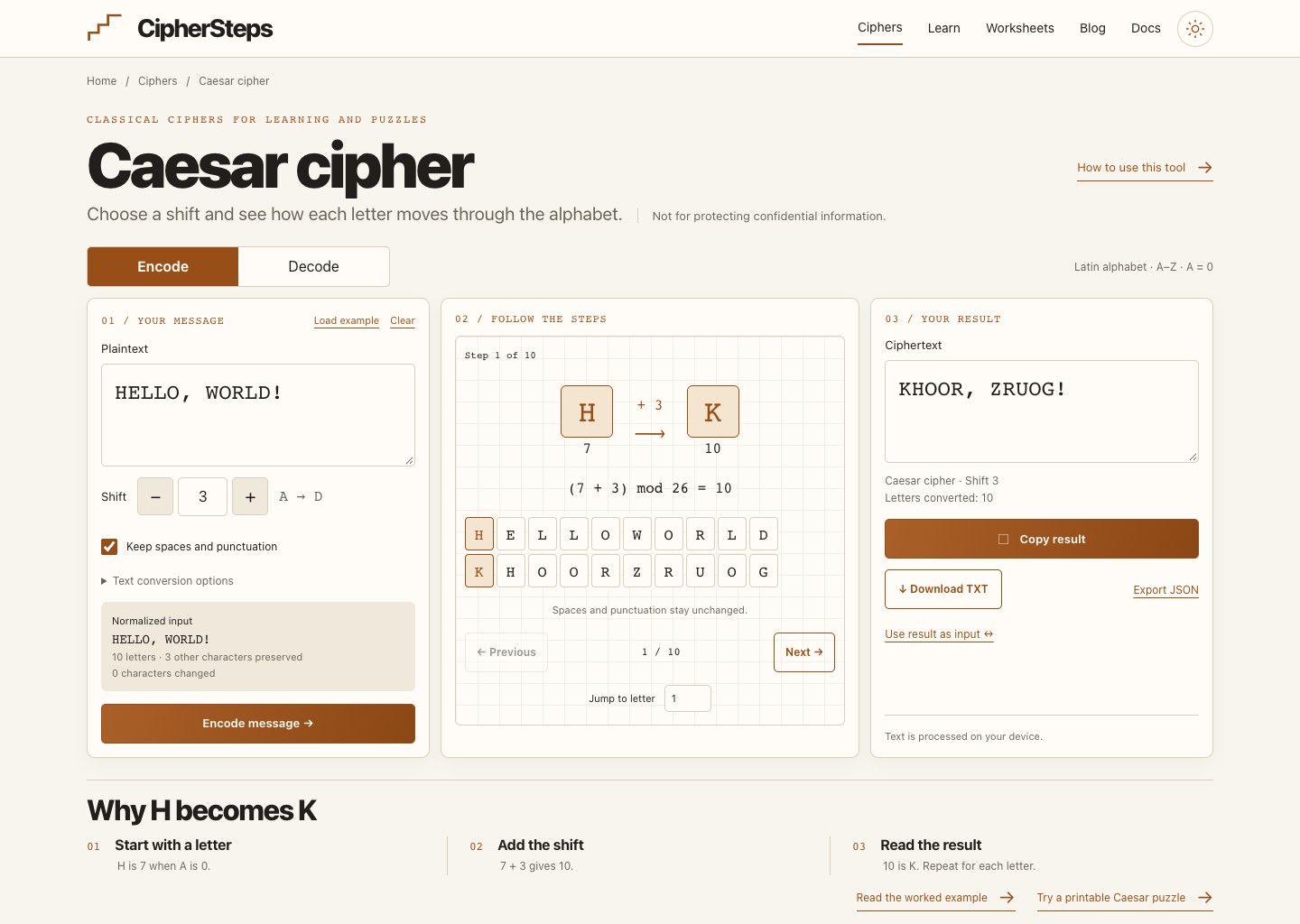
Start with Caesar and a short message. The tool puts your input, letter steps, and result side by side on a large screen. On a phone, the result comes before the expandable steps so you can finish a quick conversion without scrolling across a wide layout.
1. Open Caesar and choose Encode
Open Caesar from the Ciphers page or the link below. Choose Encode, enter HELLO, WORLD!, and set Shift to 3. Keep “Keep spaces and punctuation” selected.
| Control | What it does |
|---|---|
| Plaintext | The original message you want to transform |
| Shift | The number of A–Z positions to move |
| Text conversion options | Explicit choices for accented letters and ligatures |
| Normalized input | The text after the selected input rules |
| Encode message | Calculate and show the result |
2. Read the input preview
Compare the input preview with the text you entered. Here it remains HELLO, WORLD!: ten letters take part in the calculation, and the comma, space, and exclamation mark stay in place. No accent conversion is needed.
Other methods prepare messages differently. Rail Fence removes spaces and punctuation; Playfair forms letter pairs and may add fillers. Check the Prepared input and any change notices to see the exact text used for the calculation.
3. Convert and inspect one step
HELLO, WORLD! with shift 3
HELLO, WORLD!Encode; shift 3; preserve nonlettersKHOOR, ZRUOG!Press Encode message to get KHOOR, ZRUOG!. Under Follow the steps, select the first H: its position is 7 when A = 0, and adding 3 gives 10, or K. Use Next and Previous to move between letters, or Jump to letter to go straight to a position.
For a long message, the step view shows the first 500 letters while the full valid input is converted. Messages can contain up to 20,000 Unicode characters and no more than 20,000 normalized letters. Keys have a separate limit of 64 characters.
4. Check the result in reverse
Select Use result as input, check that Decode is selected, and keep shift 3. Press Decode message to get HELLO, WORLD! back. If you want to work through the subtraction yourself, follow the linked Caesar lesson.
5. Copy or save the result
Copy result copies the text shown in the result box. Download TXT saves the same text in a plain-text file. Export JSON also includes the method, variant, settings, input forms, and warnings, which is useful if you want to repeat or explain a conversion. Check the file before sharing it.
Choose a next experiment
Try Rail Fence next to see how a cipher can move letters rather than replace them, or choose a worksheet for paper practice. Load example brings back a sample; Clear removes the current message, key, result, and playback. Save anything you want to keep before clearing or leaving, because messages and keys are not stored as a history.
Related tools and guides
The workspace at a glance